Anatomy
Five regions, top to bottom. Only two are always on screen — the header and the input bar. The rest appear when they have something to say.

Header
The identity block. Who you are talking to, what is powering it, and where this conversation is recorded.

| Line | What it tells you |
|---|---|
| Agent name | The focused instance — the thing your next message reaches |
| Session id | This conversation's record. Press it to open the .jsonl |
| Account | The signed-in profile |
| Loaded | Modules and tools the agent actually registered, and boot time |
| Model | The engine the focused agent declares — what * changes |
The tool count is the live manifest, not what the config asked for. If something you wrote is missing here, it did not register and the agent cannot call it.
Conversation
The message stream for the focused instance: what you sent, what the agent said, every tool call it made, and any errors along the way. One instance is one continuous stream — there are no branches to track.

Tool calls render inline as they run. Nothing is hidden behind a toggle you have to know about — the point of the interface is that you can see what the agent did.
Status row
Appears only while something is happening. It carries the spinner and a label for the current activity — booting, working, rebooting, shutting down — and the update notice when a newer Axon is available.
When nothing is in flight the row is empty, so the interface is quiet by default. It is Axon's row, not yours — the rows you compose are status lines, further down.
Input bar
Where you type, and the most information-dense part of the screen. The symbol on the left is the active mode.

The row beneath the box normally shows your working directory — but it is shared, and several things borrow it:
| What shows | When |
|---|---|
| The path | Default |
| A notice | tui.info / warn / error, tinted, for a few hundred ms |
| An escape hint | A palette is open and Escape will back out |
| The exit ladder | ctrl+c was pressed and outranks everything else |
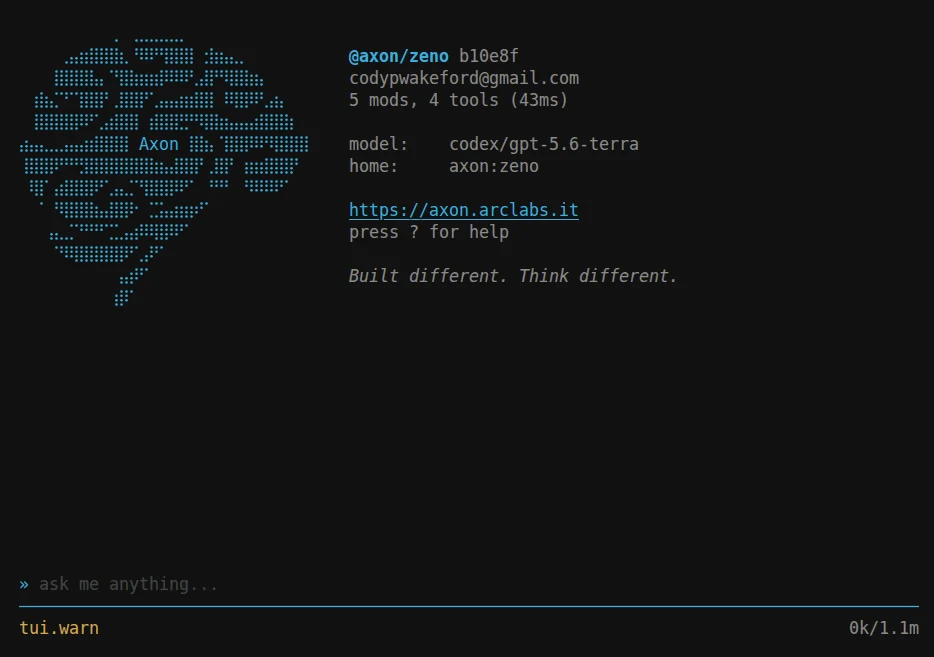
One line, one thing at a time, and the terminal's own hints always win. A notice fired during the exit window waits rather than displacing it.
Palette
Opens over the input bar when you press a mode key. Type to filter, arrows to move,
Enter to confirm, Escape to cancel.

Every palette is the same widget — the built-in ones and any you register have identical
row shapes, filtering and navigation. That is deliberate: a palette you write is as good
as :, and gets better when : does.
The mode keys
You are always in a mode. The default is normal: type a message, press Enter, it goes
to the focused agent. Press a mode key on an empty input to switch; press it again,
or Escape, to come back.
You never have to remember them. ? opens the same list, in the terminal, with the
symbol beside what it does:
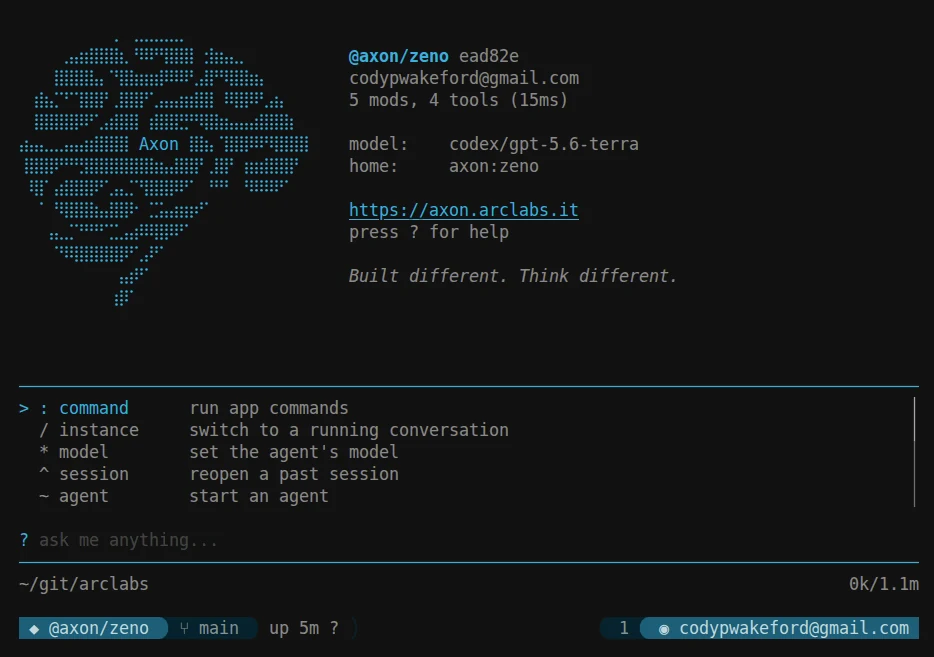
| Key | Mode | What it opens |
|---|---|---|
: | command | The : command tree |
~ | agent | Start an agent |
/ | instance | Switch to a running conversation |
^ | session | Reopen a past conversation |
* | model | Set the focused agent's model |
% | module | The agent's modules, and the registry |
> | prompt | Insert a prompt into your message |
" | theme | Switch colour theme, with live preview |
# | voice | Voice input |
? | help | Keyboard reference |
↑ | history | Previous messages (on an empty input) |
Two of these also work mid-sentence, because they have a coherent answer for what
happens to text already in the box: # appends its transcript, and @ splices a file
path over its own trigger. The rest stay literal characters once you have started typing.
A few keys are the terminal's and cannot be rebound: ctrl+c, ctrl+d, Escape,
Enter, Tab, the arrows, and backspace.
Agents, instances, sessions
Three of those keys look similar and are not. They address three different nouns, separated by tense:
| Key | Noun | Tense | What it is |
|---|---|---|---|
~ | agent | timeless | The project — config, tools, prompts |
/ | instance | present | A live process you can talk to |
^ | session | past | A recorded conversation on disk |
One agent can have many instances running at once. One instance writes one session.
~ always spawns. Every agent in your profile, with a count beside any that are
already running. Selecting one starts a new instance and focuses it — it never
navigates you back to something already going.
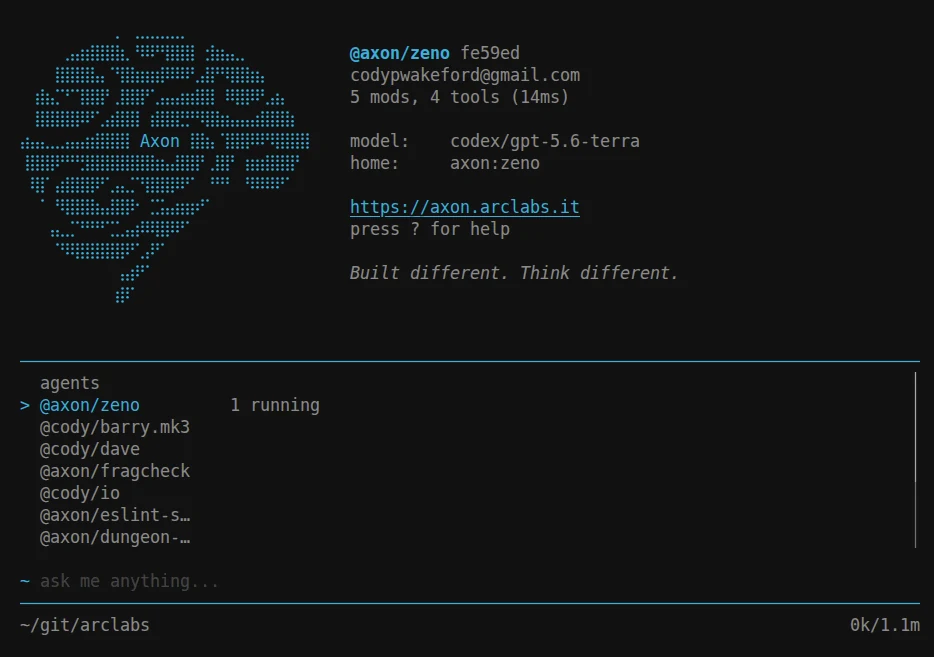
/ is how you go back. Live conversations only, in spawn order — a list you navigate
must not reorder under the cursor. Each row carries its state and instance id, so two
instances of the same agent are still tellable apart.
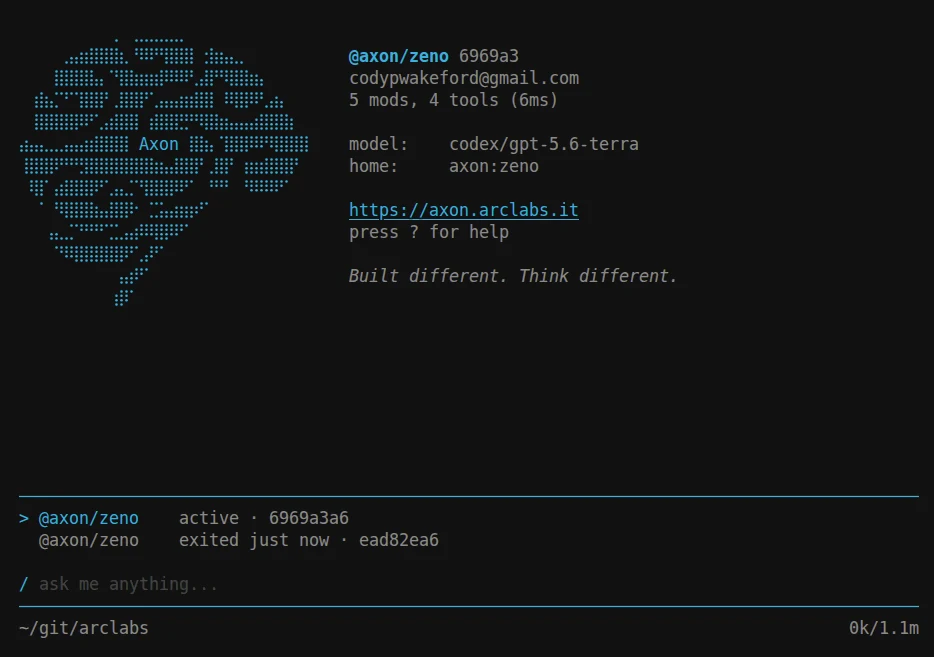
^ reopens the past. The focused agent's sessions, newest last, with age and token
count. If a session is still live it focuses it; otherwise it boots an instance over the
log. Sessions can be renamed, and a fork shows as a branch off the one it came from.
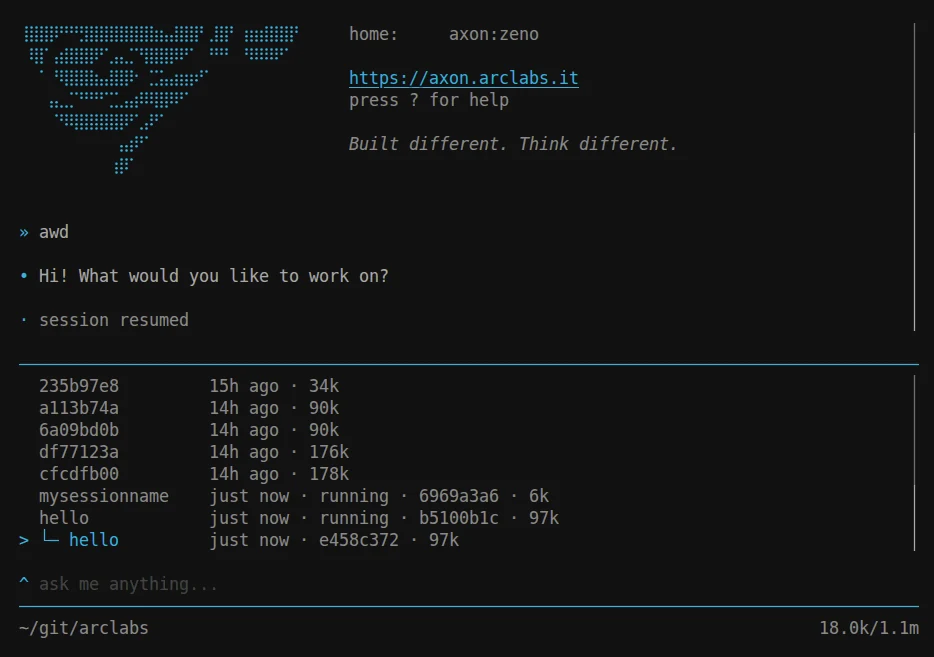
The rule that makes all of this safe to explore: nothing reachable from a palette
destroys a conversation. :agent close is the only verb that ends one. Without that,
every key needs its own memorised answer to "does this replace what I'm on?"
The command tree
Space descends into a group and the breadcrumb tracks where you are. Rows that have a
faster keystroke say so:
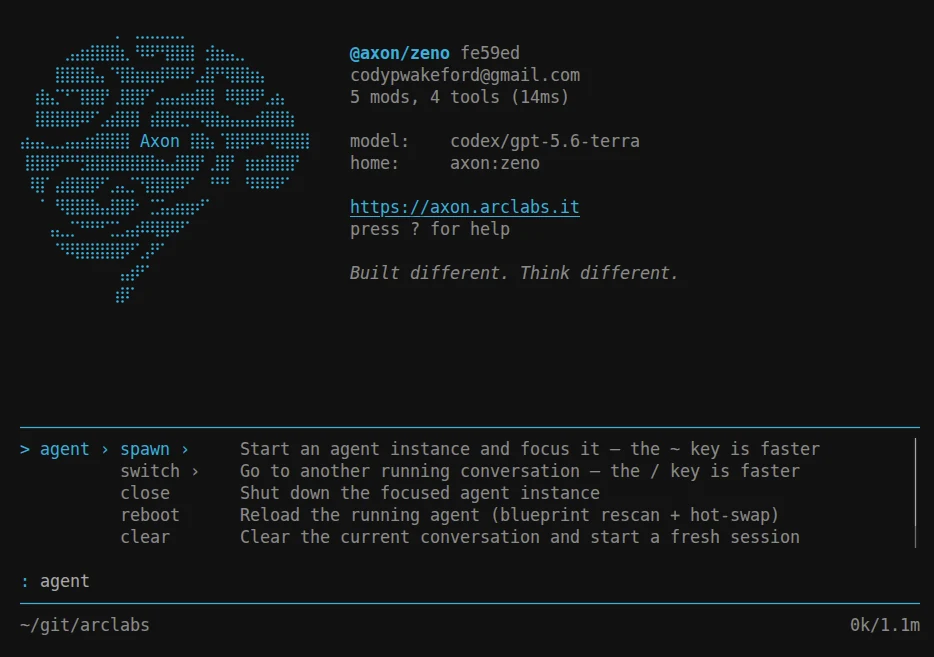
| Group | Commands |
|---|---|
:agent | spawn switch close reboot clear model |
:session | pick fork rename open |
:module | install update uninstall |
:ext | install update uninstall |
:lines | toggle on off |
:provider | codex connect|disconnect · openrouter connect|disconnect |
:open | log flame engine |
| top level | :init :reload :update :docs :logout :exit |
:open needs an attached editor — it opens this session's event log, its trace as a
flame graph, or its engine calls as a buffer. See Fleet.
Enter runs what you typed, never what happens to be highlighted. Command mode's query
is a path, not a filter, so a partial like : up refuses rather than firing update.
Some rows are a descent rather than an action. Selecting a group rewrites the query instead of running something, and the breadcrumb shows how deep you are. A working row replaces the list while an async action runs, and the list returns when it settles.
Status lines
Configurable rows of your own, between the cwd row and the voice row — and one above the conversation if you want it.
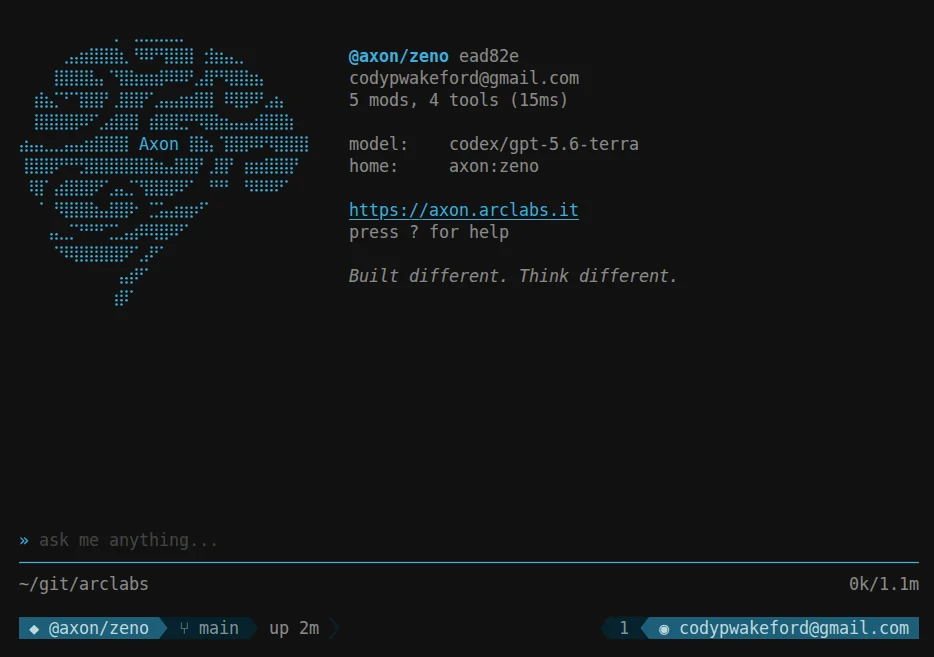
You choose what each one shows, in what order, and how it is drawn. Place a second above the conversation and the screen is bracketed by them:
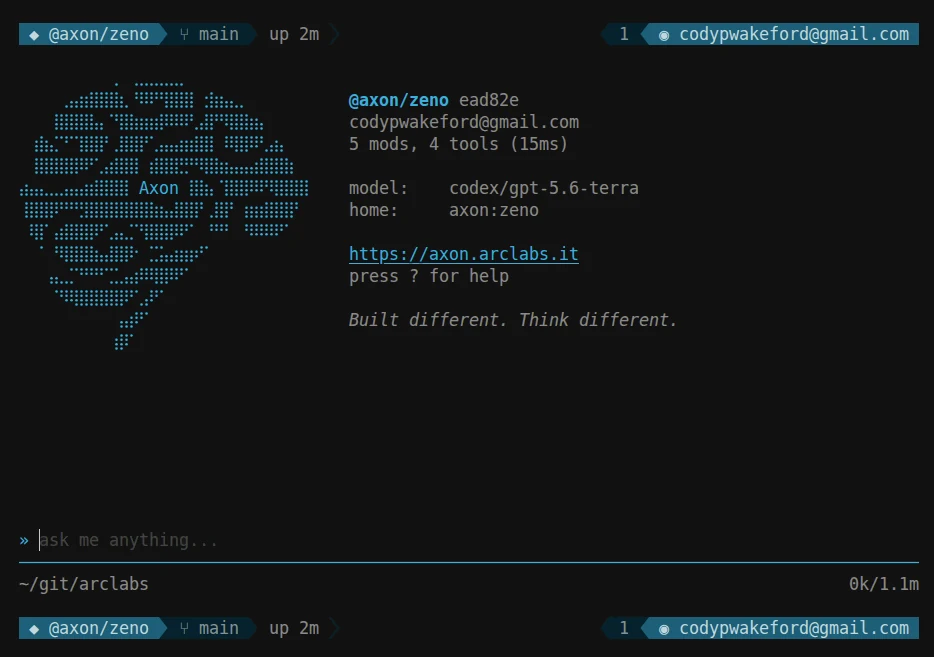
lines.create("me:status", {
    left: ["axon:agent/name", "axon:agent/model"],
    right: ["axon:git/branch", "axon:clock"],
})

lines.set(["me:status"])
Nothing appears until you ask for it: a fresh terminal has none, and the lines
Axon ships are registered rather than placed. :lines toggle flips them without
touching your config.
The two rows Axon owns stay Axon's. The cwd/token row and the voice row are what must always be readable, and a config that could push them off screen would be one that hides the thing you need in order to fix it.
See lines and components.
Where to go next
Lines — the status bar you compose.
Models — what * opens, and how to find a model in it.
Profile Structure — where your config lives, and what each file is for.