Get Connected
You choose where the tokens come from. Axon handles everything else. Swap providers at any time — your tools, sessions, and scripts don't change.
Axon needs an inference provider — the model that does the reasoning. Four options are available. Pick one before starting your first session.
Axon Cloud (default)
No setup. If you're logged in, it works. Model costs are billed against your Axon account balance — select any model marked with the Axon Cloud indicator in the model palette and it runs immediately.
Top up your balance from the account page.
OpenRouter (BYOK)
Bring your own OpenRouter API key and access 100+ models. Costs go direct to OpenRouter at their rates — no Axon markup.
Get a key at openrouter.ai/keys, then in the TUI:
:keys set openrouter set <your-key>
Once set, all OpenRouter models appear in the model palette (* to open it). Switch models
at any time without re-entering your key.
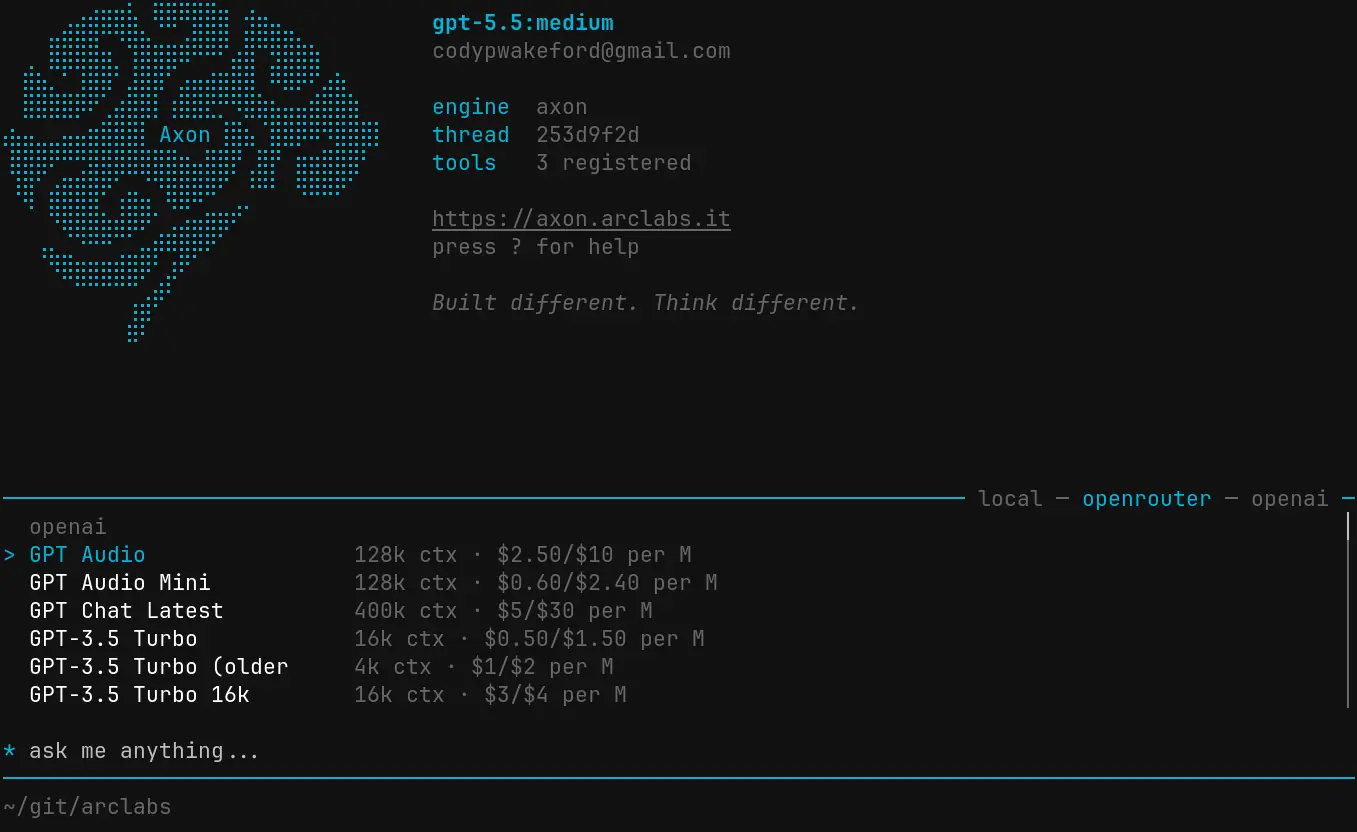
To check what's configured:
:keys show
OpenAI Codex
If you have an existing OpenAI Codex subscription, connect it via OAuth — no API key needed.
:keys set openai connect
This opens a browser window for authentication. Once approved, Codex models appear in the model palette. The connection auto-refreshes — you won't need to reconnect unless you explicitly disconnect.
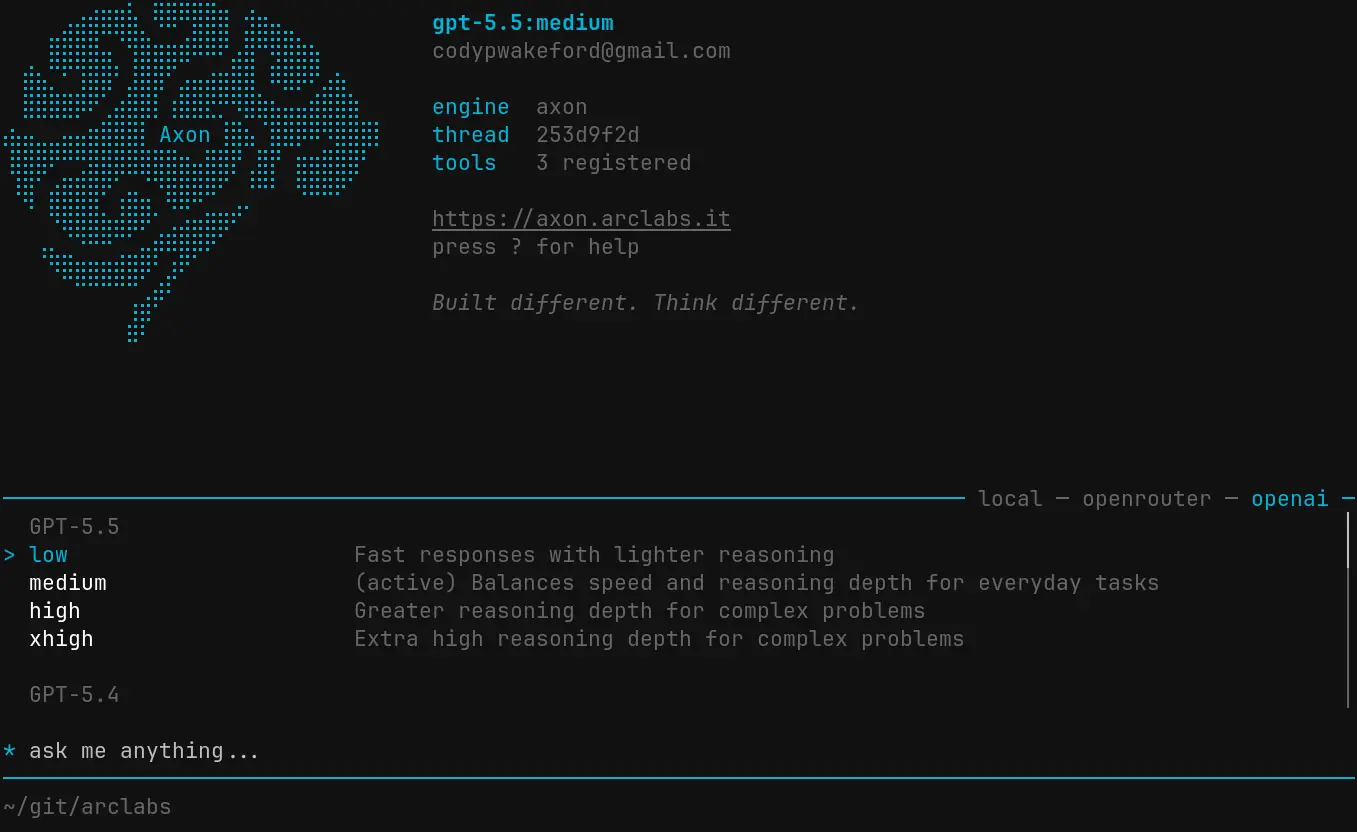
To reconnect or disconnect:
:keys set openai reconnect
:keys set openai disconnect
Ollama (local)
Run models locally on your machine. No API costs, no data leaving your machine. Requires Ollama installed — Axon manages the server automatically.
Open the model palette (*) and browse the Ollama library. Models are filtered to your
hardware and labelled by fit — recommended, possible, or unlikely to run well. Select any
model and it starts downloading immediately. Once complete it's ready to use.
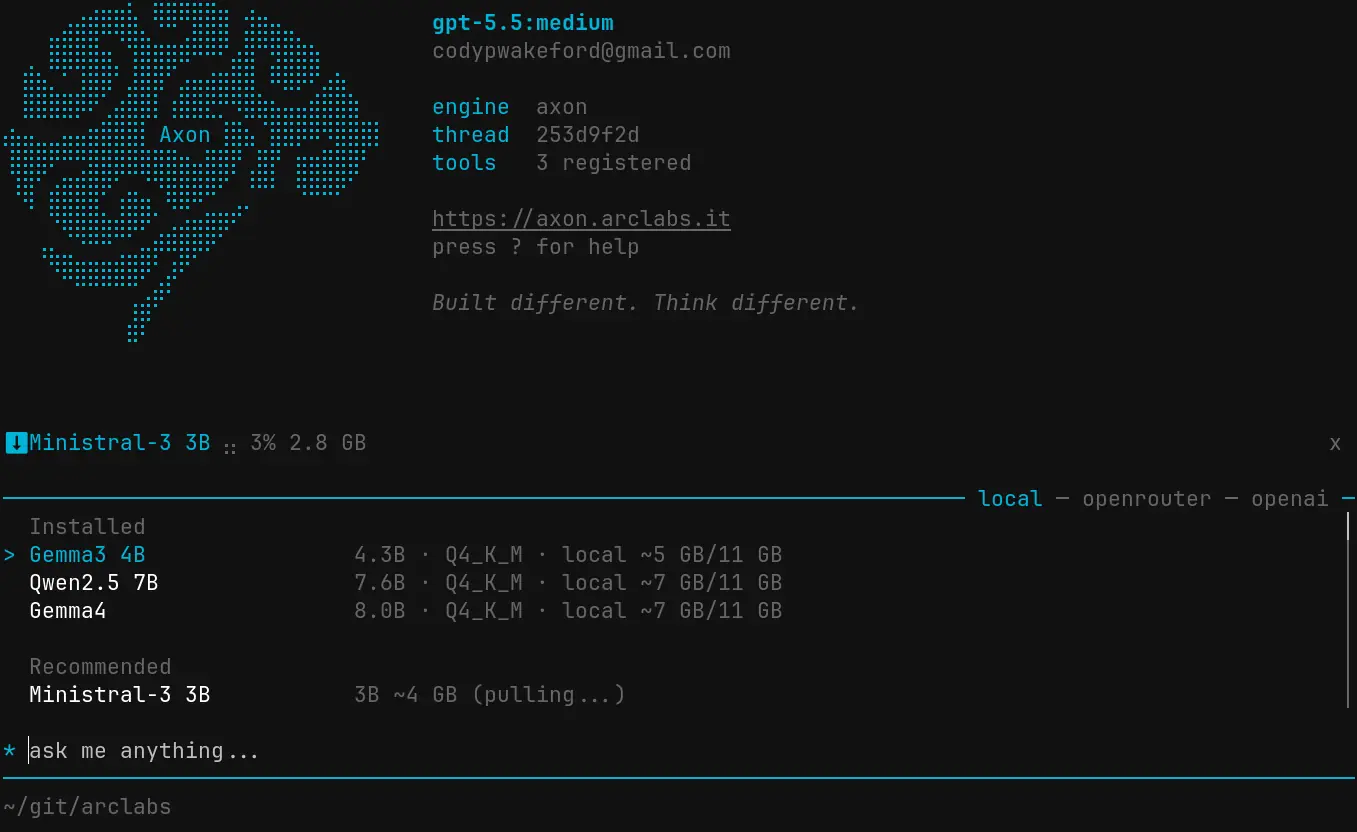
Manage running models from within the TUI:
:ollama ps              # show models currently loaded in VRAM
:ollama unload          # unload a model from VRAM
:ollama remove          # delete a model from disk
:ollama update          # re-pull all installed models to latest
:ollama stop            # stop the Ollama server
Switching providers
Open the model palette with * at any time. All connected providers and their models are
listed together. Select any model to switch — the change takes effect immediately for the
next session.
You can have multiple providers configured simultaneously and switch between them freely.